Anyone who works with software development for different platforms knows how important the practicality of virtual machines is. Until now, for those with Windows Home, the solution was to install software like Oracle VirtualBox. Microsoft's Hyper-V, by default, on workstation versions only comes enabled to run on Windows Professional. However, there's a trick to make it work on Windows Home.
The files needed to run Hyper-V on Windows Home are already there. You just need to run some commands to register its packages.
Back up your files and create a restore point. Run at your own risk :o).
Create a .bat file with the following content:
    @echo off
    for %%i in (%SystemRoot%\servicing\Packages\*Hyper-V*.mum) do (
        Dism /online /norestart /add-package:"%%i"
    )
    Dism /online /enable-feature /featurename:Microsoft-Hyper-V -All /LimitAccess /ALL
Open a prompt in administrator mode and execute. You'll need to restart the workstation.
Done! After that, we can go to the start menu and type "turn features" and select "Turn Windows features on or off". Confirm that the "Virtual Machine Platform" and "Windows Hypervisor Platform" features are selected.

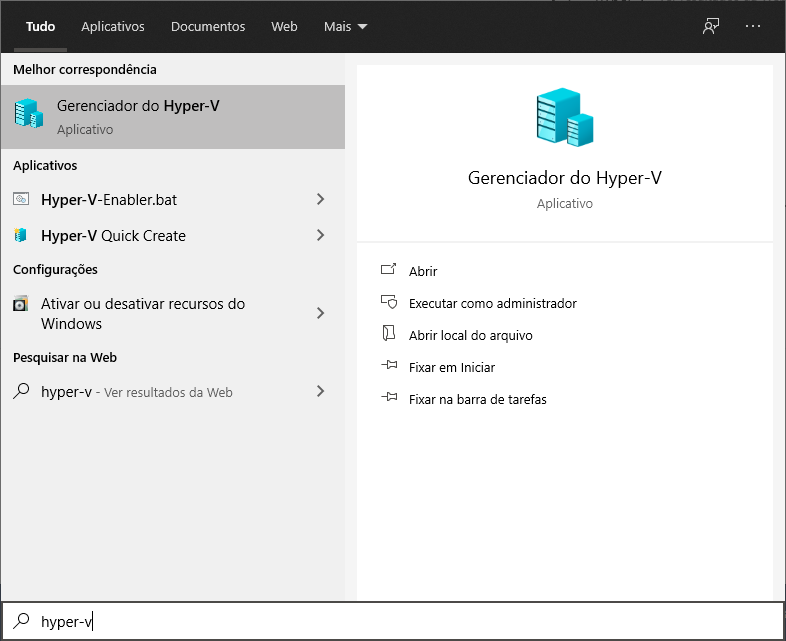
If you search in the start menu, you can find the Hyper-V Manager.
Be aware that Hyper-V doesn't support all Linux distros, such as Fedora. Check the list.
You can still install and run a Linux distro outside this list, but you won't be able to install LIS (Linux Integration Services), which optimizes execution and provides integration features with the host.